 Simone
Windows Search卸载删除四种最全的方法
的有关信息介绍如下:Windows Search卸载删除的四种方法:
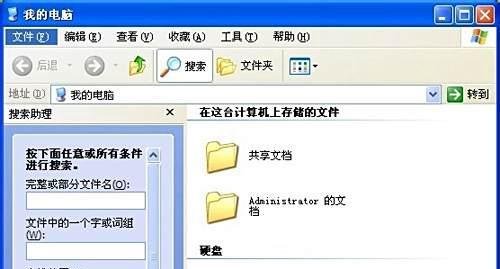
确认版本:打开Windows Search,查看右上角文字。若显示“Windows Desktop Search”,则为第三版;若显示“Windows Search”,则为第四版。
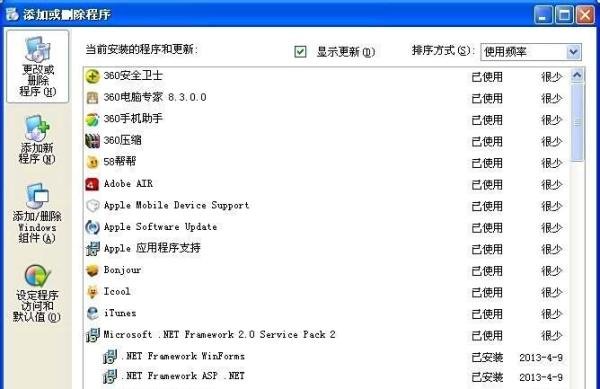
卸载操作:针对第四版,在“控制面板”的“添加删除程序”中找到“Windows Desktop Search”,选择删除。若未找到,则采用后续方法。
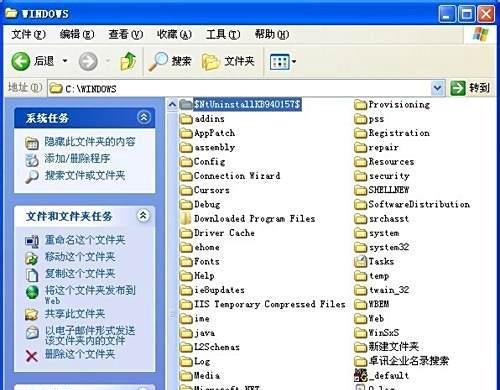
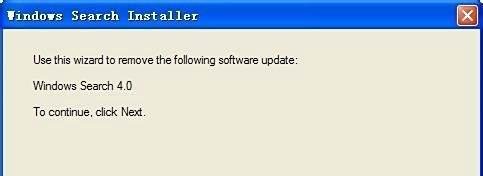
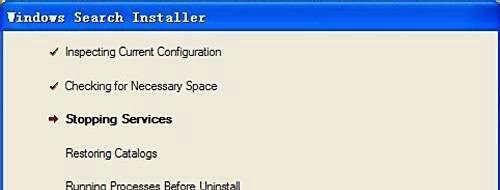
打开“开始”菜单,选择“运行”,输入指令“%systemroot%$NtUninstallKB940157$spuninstspuninst.exe”,点击“确定”执行卸载。

若方法二提示“The system cannot find the path specified.”,则需通过注册表操作。
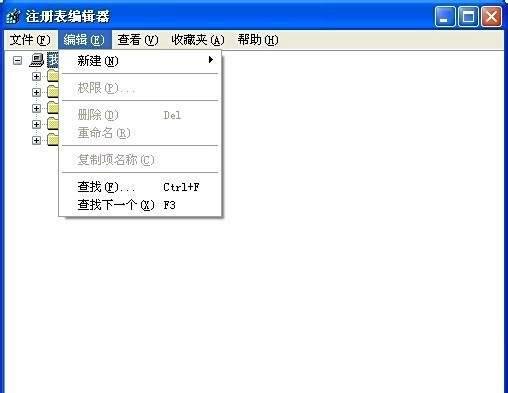
打开注册表:输入“Regedit”,展开路径“HKEY_LOCAL_MACHINESoftwareMicrosoftWindowsCurrentVersionUninstall”,或直接在工具栏“编辑”中选择“查找”,输入“windows search”。
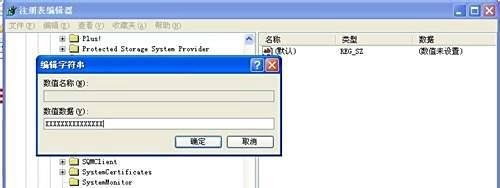
找到Windows Search项,双击右侧的“UninstallString”字符串键,复制内容并粘贴到“运行”窗口,回车执行卸载。
若Windows目录下的卸载程序被删除,需从指定链接下载卸载程序包。
下载链接:http://pan.baidu.com/share/link?shareid=426462&uk=168531391
下载后解压文件夹至“C:Windows”下,再次执行方法二中的运行指令“%systemroot%$NtUninstallKB940157$spuninstspuninst.exe”。
按提示完成卸载,重启电脑后测试搜索功能是否正常。